Showing posts with label Cricut. Show all posts

Monday, August 3, 2020

Motivation Monday - Easy Jack Skellington Face Mask (using Cricut)

WELCOME FELLOW Cricut CRAFTERS!


This week starts week 3 of trying to get back to normal.  After 18 weeks of COVID 19 isolation, I pushing myself to get out of the house more (while still socially distancing). Since I am getting out of the house more, I need more than one face mask. I decided to use my Cricut to create some fun Jack Skellington face masks.


I started with the following items:
  1. Disney® - The Nightmare Before Christmas - Jack is Back! Cricut cartridge (I had previously purchased within design space)
  2. Hanes 100% cotton one size fits most face masks
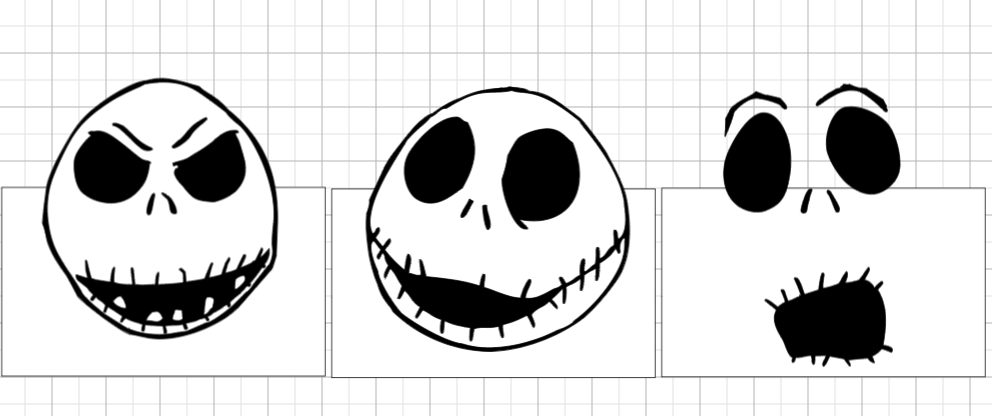
I knew I wanted to use the Jack Skellington face for my mask so I added those faces to a new project. I deleted the hidden bits since I was sure I would not be using them. Then I sized the faces to fit the masks. For these masks, you will want to use a 3.5in by 6in canvas.
Inserting Images & Removing Extra bits


Next I modified the images so that I was able to cut just the black mounths and nostrils. Steps
  1. Choose an image. Ungroup.
  2. Choose both black layer and white layer, then slice.
  3. Move layers so you can see all three layers.
  4. Delete both the solid white and black images. You will be working with the outline image.
 

Last I did a whole lot of slicing to get rid of the outline on each of the faces.

Tips for cutting and applying:
  1. Remember to hid the mask "template" before cutting.
  2. Make sure to place the iron-on vinyl shiny side down on your cricut cutting mat.
  3. Remember to "mirror" the images before cutting.
  4. Always refer to the Cricut easy press on line guide for correct temperature settings and time to iron. In this case, EveryDay Iron-on and 100% cotton is 315 degrees for 30 second on the front side and 15 seconds on the back side. I actually did this twice due to the fact that some of the face pieces are really small and the mask is double layered cotton.
Here is what my Jack Skellington masks looked like when they were done.


If you would like to receive this Cricut DS file for free, subscribe to my blog and post a comment belong asking for the file.   #CricutMade

Stay well and Happy crafting!!
TINA Stanczak
Cricut Affiliate link  | TinaStanczakCricutAffiliateLink
Facebook |     Emptynest   Scrapin   (private group for project instructions)

Tuesday, June 23, 2020

Technique Tuesday - Animal Kingdom Rivers of Light (Using Patterned Paper in Cricut layouts )

WELCOME TO BRUSHED WEEK!

Today I continue to highlight the Brushed / Animal Kingdom workshop I designed while at the same time showing you my technique for artfully highlighting patterned papers with Cricut cuts.. 

This week I am using the Brushed paper packet to create layouts for Disney's Animal Kingdom. Brushed is an older paper packet that was "refreshed" with new colors and brought back by popular demand. The first time I saw the Bohek patterned paper, I thought of the Rivers of Light show at Disney's Animal Kingdom.

What is Bohek? In photography, bokeh is the aesthetic quality of the blur produced in the out-of-focus parts of an image produced by a lens. Bokeh has been defined as "the way the lens renders out-of-focus points of light".


You can see the points of light on the paper, with the blurred edges of those points of light. I couldn't think of a more perfect pattern for use in a "Rivers of Light" layout. At the same time, I knew I want to bring in the lotus image, so here is two page 12x12 River of Light Scrapbook Layout as I set it up in Design Space.
My vision was that all of the lotus pieces would be cut from a single sheet of the Bokek paper as follows:
1) the left most floating lotus mostly yellow
2) the middle lotus on the left page some yellow fading into pink
3) the middle lotus on the right page mostly pink
4) the right most lotus on the right page some pink fading into yellow
5) the top cluster of lotus of pink so the yellow titlw shadow would not be lost in the lotus

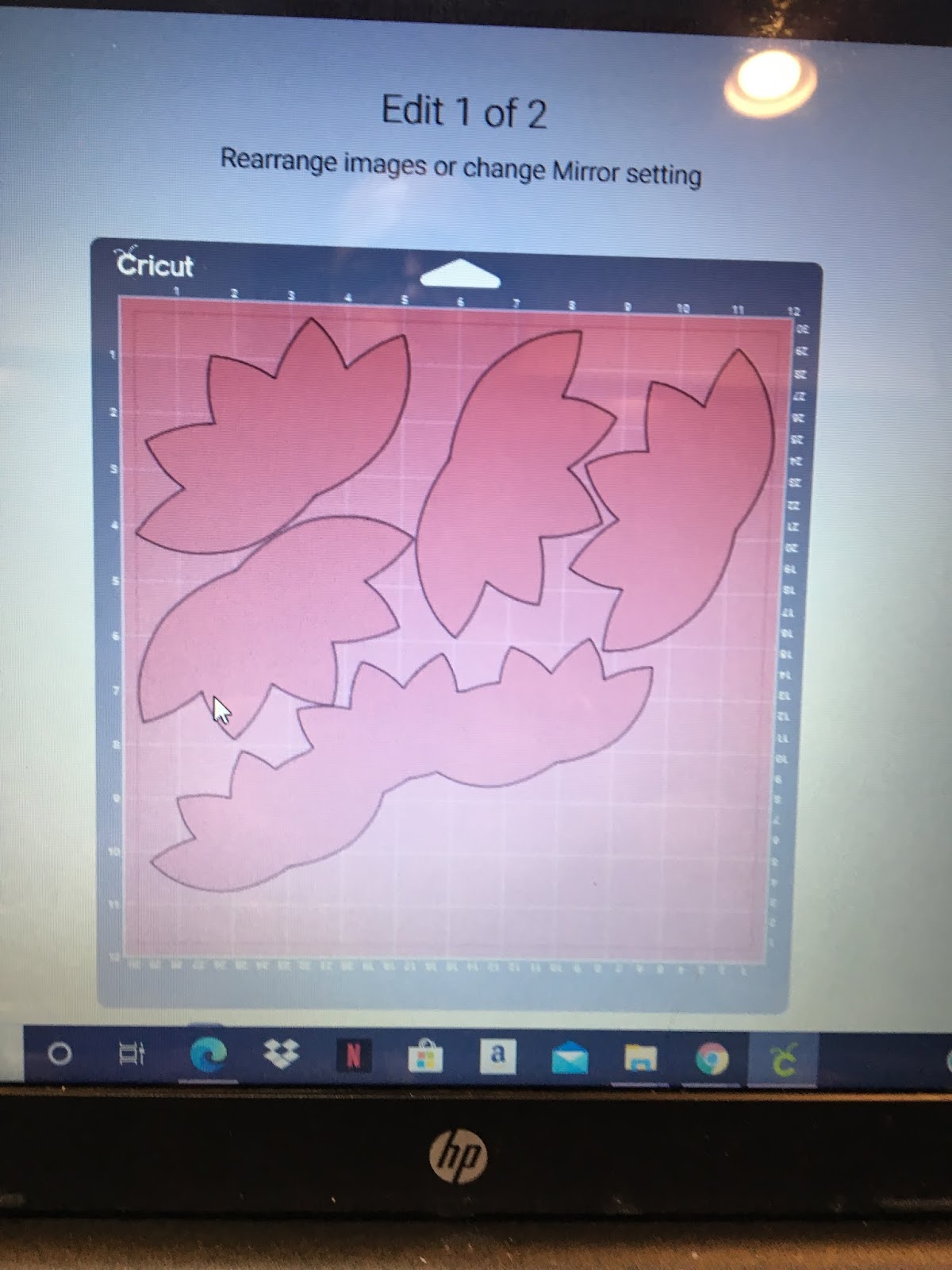
When Cricut lined up the images to be cut, here is what I got.
First of all, design space spread the cuts across 2 sheets of paper with a lot of wasted space. Second of all, the lotus's were not aligned on the paper to cut giving me the colors I had envisioned.  So I moved the cuts.

1) I pulled the images of the 3 welded lotus's for the title to the bottom of the sheet to move it out of the way
2) I pulled one of lotus images up to the top left and rotated toward the left top corner to get the a lot of yellow into the cut
3) I pulled one of lotus images up to the top right and rotated toward the left top corner to get some pink fading into yellow for the cut

4) Next, I had to move the 2 lotus images from mat 4 to mat 3
  • Choose the image on mat 4 
  • Click on Move Object
  • You will be given a choice of mat to move the object to. Choose Mat 3.
  • When the check mark is shown on Mat 3, click the confim button.
  • Cricut will place the image at the top left corner. Move the image so it face the lotus in the right hand top corner, thus placing it to cut with yellow on the left side and pink on the right side.
  • Repeat the steps to move the second 2 lotus images mat 4 to mat 3. This time, place the lotus under the first lotus in the left hand top corner.
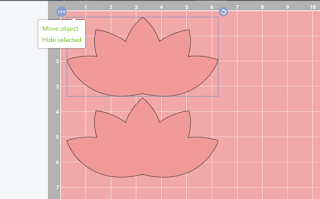
Click on Move Object

Choose Mat 3
Confirm choice of mat
After moving to mat place image as required
This is what the image placement on my mat looked like before I cut.
I had my images very close but not overlapping. 
VERY IMPORTANT!! 
1) Make sure that none of your images are touching each other before cutting!
2) Make sure you put the mat in the Cricut with the yellow portion of the paper going in first, or your images will be cut upside down (standing on their heads)
3) Leave enough paper to cut the hibiscus flowers for the Stitch layout

It is also important to make sure you have enough paper in the bottom right to cut the flowers for the Stitch layout.  I put the bottom layer of the hibiscus flowers slong the bottom edge where it is very dark red. I cut the 2 pixie hibiscus flowers from the pink section along the right edge.
Some of you might be asking WHY??

Well, if I had cut the layout using plain cardstock, it would be kind of boring. Using patterned paper for you Cricut cuts amps up the layout to make it more interesting.

My vision realized:

My vision was that all of the lotus pieces would be cut from a single sheet of the Bokek paper as follows:
1) the left most floating lotus - mostly yellow
2) the middle lotus on the left page - some yellow fading into pink
3) the middle lotus on the right page - mostly pink
4) the right most lotus on the right page - some pink fading into yellow
5) the top cluster of lotus - pink so the yellow title shadow would not be lost in the lotus

Check back tomorrow to see the title for the Rivers of Light layout and Friday (Finish it Friday) for the finished layout.

Stay well and Happy crafting!!
And remember all Cricut and general crafting questions are welcome!!
TINA Stanczak
Facebook |     Emptynest   Scrapin   (private group for project instructions)

Monday, June 22, 2020

Motivation Monday - Cricut Stitch Scrapbook Layout

WELCOME FELLOW PAPERCRAFTERS!


This week (week 15 of COVID 19 isolation) I am working with the Brushed Paper Packet from Close To My Heart. Brushed is an older paper packet that was "refreshed" with new colors and brought back by popular demand. I love the summer colors.  

As you know, I have been working on both Disney scrapbook layouts and my Alaskan Cruise album concurrently,  As I was flipping through my Disney photos, it struck me that these colors would be perfect for our Animal Kingdom photos, especially the new "Pandora" section of the park.   

I started by creating a "Stitch" layout since we have some older photos with Stitch from way back, when Stitch could be found in Camp Minnie / Mickey. Camp Minnie / Mickey was replaced with Pandora. This layout could easily work for Hawaii photos, Disney Aulani, or any cruise photos since the layout has a tropical flavor.

I was hoping that getting this layout completed would motivate me to use the whole paper packet and create some awesome layouts that are currently showing up in my dreams.
  
I used a piece of the brushed leafy pattern paper for my background. I cut the tops of the palm trees out of the brushed green dotted patterned paper. I also cut the bottom layer of the Hibiscus flowers out of the bokeh patterned paper. The patterned papers I used are shown below. The remaining Cricut images were all cut using various colored CTMH cardstock.

All of the Cricut images in the cut file are Close To My Heart images or free images so you DO NOT need a Disney cartiridge to make this layout.
  
When I make my layouts, I don't always cut the colors in the order that Design Space lays out the mats. 
  1. In this case, I cut the Canary (mat #9) first. I inked the edges of the sunshine and adhered to the base of the layout (be sure to cut the branding/zip strip off before adhering the sunshine).
  2. Next I cut the top layer of the surf board and the leaves using the dark side of Green Apple cardstock (mat #10). I inked the edges of all pieces with Green Apple ink.
  3. After this, I moved on to the beach. The beach was cut using both the dark side and light side of toffee card stock. I cut larger portion of the beach (mat #7) with the dark side of toffee card stock. The I turned it over and put the uncut portion of the paper to the top of my cricut mat to cut the smaller portion of the beach and the bottom layer of the palm trees (mat #8) from the light side of the toffee cardstock. I inked both section of the beach with toffee ink (refer to picutre) then adhered the left sides together.  Wait....don't adhere this to the base page yet, as the water needs to be adhered first.
  4. This next step is a little tricky. The palm tree consists of 3 layers (bottom -> cut from the light side of toffee cardstock, middle = leaves, and top layer of tree). The top layer of the tree is mat # 6 (dark brown). I was able to cut the tree trunks from the same sheet of cardstock I cut the beach images from. Before cutting, check two things: 1) make sure the images fit on the paper (spin or move to fit as needed), and 2) make sure the dark side is up. I inked the tree trunks using Expresso PIGMENT ink because pigment ink is very wet and can be used almost like paint. Then I dabbed ink onto the coconuts (refer to picture above). Alternatively, you can cut the tree trunks using Espresso Cardstock. 
  5. Wanting to finish the palm trees, I cut mat #11 (the tree tops) usng the green dot patterned paper. I inked the tree tops with green apple to give them definition, then moved to the next step before gluing all the palm tree pieces together. Note: I generally wait 15 minutes between inking and gluing to ensure the ink is dry before I glue all the pieces togehter. This is very important with the pigment ink because it will get everything covered in ink if you don't give it time to dry.
  6. I cut the water pieces next. I cut the larger water piece (mat # 12) using the dark side of glacier, then cut the wave (mat #13) using the dark side of Lagoon cardstock. If you like, you could cut the larger water piece using the light side of the lagoon cardstock. I wanted a stronger contrast so I used a lighter color for the water versus the wave. I inked the wave and the top of the water using lagoon ink, then I adhered them together. Before adhering the water to the base sheet, I cut it at the 2 1/4 inch point since it is only 11.5 inches long. I adhered the shorter water piece to the left side and the longer water piece to the right side.
  7. After adhering the water pieces, I glued down the beach and then the palm trees, followed by the surf board. I use this method so I don't lose any peices as I go along.
  8. I moved to the flowers next. As mentioned earlier, I cut the bottom layer of the flowers using the bakeh patterned paper. I cut a 6x4 piece from the darkest portion of the paper (as shown on the right below). Before cutting the images, I changed the mat size (mat #3) to 4x6 as shown on the left below. This forces Design Space to put all the images on the paper,
  9. Having cut the bottom layer of the flowers, I cut the white images (mat #1). I adhered the 3 white flower tops to the bottoms, then inked the edges of the flowers using Pixie ink.
  10. To finish the flowers, I cut the pixie flower images (mat #4). Again I adhered the pixie flowers to the bokah patterned paper, then inked 3 flowers with Pixie ink..
  11. To finish off the flowers, I cut the black next. To avoid losing any of the pistils. I peeled then off the Cricut mat one by one and adhered to the flowers before remvoing the next pistil. After finishing the flowers, I adhered the photo mat, all but the one small white flower and the leaves that go with the flowers.
  12. The last three mats/colors are Ballerina (the insides of Stitchs ears and his tongue),the light blue (dark side of Carolina) and the dark blue (dark side of bluebird). I cut these colors and layered Stitch together. 
The highlights I added to Stich included using the black journalling pen to add his upper lip and outline his nose. I also used a white gel pen to add the whites of his eyes. 

The last steps to the layout are to adhere Stitch and the final flower. 

All in all, I LOVE the way this layout turned out. All of the Cricut images in the cut file are Close To My Heart images or FREE images so you DO NOT need a Disney cartiridge to make this layout.

If you would like to create this layout me, contact me to purchase the Cricut DS file.

Stay well and Happy crafting!!
TINA Stanczak
Facebook |     Emptynest   Scrapin   (private group for project instructions)
However, the Cricut cut files can be used with CTMH cardstock and other items you have in your stash to complete this layout.  

Tuesday, June 9, 2020

Technique Tuesday - Write on the branding (zip) strip w/ Cricut & Hidden Photos

WELCOME TO AURORA WEEK! 


Today I continue to highlight the Aurora / Alaskan Cruise workshop I designed, including a really cool technique using your Cricut to write on the branding (zip) strip of any Close To My Heart paper. 

This workshop creates (8) 12x12 scrapbook pages. I love the rich color combination in this kit. It features the Aurora paper collection from Close To My Heart and creates 8 cruise / outdoor themed scrapbook pages. As I said yesterday, I know so many people who recently went on an Alaskan cruise. This workshop is perfect for capturing your memories of either past or future travels, from cruising to hiking or any other outdoor vacation.

Here are the (8) 12x12 scrapbook pages.

Both Layout 1 : Northern Lights  and Layout 2: Ocean Views / Glacier Bay were previously featured on my blog.

Layout 4: Wild & Free / College Fjord is today's featured layout.

The featured colors of this layout are Linen, Charcoal, Sapphire, Glacier and Peacock. These colors are perfect for photos of - you guessed it!  Mountains and/or glaciers. 

As an extra bonus, the precut workshop features a choice of two titles: "Wild & Free" or "College Fjord". Or, change the text in the design space file to make it your own! (refer to picture below).


The workshop features a really neat technique for using your Cricut to write on the branding (zip) strip. The Color Photo Intructional Guide will walk you thru this technique step by step. Also, I am available via facebook live for a one-on-one tutorial (included in the price of the workshop).  


Another key technique included in this layout is "Hidden Journalling/Hidden Photos" using PML cards. All you need is a little foam tape. The 5x7 photo mat was created using one of the patterened papers, then adhered with foam tape on the top, bottom, and right side. 

Hidden Journalling Technique: I added tabs to 2 of the 4x6 PML cards so they can be used for journalling. I layered a smaller PML cards on top of of one of the larger PML cards to allow for journalling on top of the dark pattern.


Hidden Photos Technique: On the back side of the PML journalling cards I added photo mats so you can include additional photos of your favorite views. Notice that I cut 1/8 inch off each side of the photo mat to make the photo fit the 4x6 PML cards & leave a tiny bit of the pattern paper showing.


Wa-la!  A great way to add extra photos to a layout without using Flip Flaps, thus allowing for the extra photos to be a different size than the main photo (i.e. the 5x7 photo).

When making this layout, I used a white gel pen to add defintion to the banners (cut by the Cricut) and black pen to outline the photo mats. Just that tiny bit of contrasting color can really make the photos pop.

I love the contrast of the blues and grays with a hint of green. It really does remind me of the glaciers and College Fjord. That said, it also reminds me of hiking/snowshoeing in the cold crisp air on a winter day. I know, you are thinking to yourself "Hey lady, it's June!".  One can't help but to envision a nice crisp day by the ocean or in the mountains with these wonderful colors.

Items contained in the precut kit:
Aurora PML Cards
This is $32.25 worth of product. Plus Color Photo Instructional Guide of all completed layouts which includes instructions for today's Technique using your Cricut to write on the branding (zip) strip. The Cricut Deisgn Space files are also included in the Instructional Guide.

If you are interested in creating this workshop yourself, simply purchase the Aurora paper packet or PML cards from https://emptynestscrapin.closetomyheart.com/ and I will email you the Color Photo Instructional Guide of all the completed layouts and the Cricut Design Space file links.

Or purchase the Cricut Design Space files for $7.50.  When you purchase the DS files, the Color Photo instructional Guide will be emailed to you with the DS file links.

Simply email niallsmama@comcast.net to purchase a precut kit or efiles, or purchase Aurora products from https://emptynestscrapin.closetomyheart.com and receive the workshop for free.

Stay well and Happy crafting!!
TINA Stanczak
Facebook |     Emptynest   Scrapin   (private group for project instructions

Monday, June 8, 2020

Motivation Monday - Aurora / Alaska 8 Page Scrapbook Kit with Cricut cut files

WELCOME TO AurorA WEEK! 


Today, I am highlighting the Aurora / Alaskan Cruise workshop I designed. I am hoping these layouts will motivate you to scrapbook your vacation memories. 

This workshop creates (8) 12x12 scrapbook pages. I love the rich color combination in this kit. It features the Aurora paper collection from Close To My Heart, and creates 8 cruise / outdoor themed scrapbook pages. It feels like everyone I know took an Alaskan cruise past summer, including myself and my husband. And, if you haven't taken an Alaskan cruise, DO IT!!  With all the stir craziness due to our (12 week) self isolation, we are both counting our blessing for past travels and looking forward to a time when we can feel safe traveling again. This workshop is perfect for capturing your memories of either past or future travels.

Here are the (8) 12x12 scrapbook pages.

Layout 1 : Northern Lights was previously featured on my blog.

Layout 2: Ocean Views / Glacier Bay is today's featured layout.

The featured colors of this layout are Sapphire, Glacier and Peacock. These colors are perfect for photos of the ocean rolling by. Additionally, the Cricut Design Space file features a choice of two titles: Ocean View or Glacier Bay. Or, change the text on the title to make it your own!
Title: Ocean View           Bonus Title: Glacier Bay
When making this layout, I splattered the base pages with both the clear shimmer brush and the charcoal shimmer brush (hence the "white" spots on the base. The mountain tops on the title have also been covered with clear shimmer to add sparkle on the snow.
I also added clear shimmer to the lens of the binoculars, then popped them off the page using foam tape.


The colors are so pretty.  Don't they make you want to sit and watch the ocean go by??

Items contained in the precut kit:
Aurora PML Cards
This is $32.35 worth of product.  Plus the inctructions Color Photo Instructional Guide and the Cricut Design Space file links.  Workshop is specially priced at $30 plus shipping. 

If you are interested in creating this layout yourself, simply purchase the Aurora paper packet or PML cards from https://emptynestscrapin.closetomyheart.com/ and I will email you the Color Photo Instructional Guide of all completed layouts and the Cricut Design Space file links.

Or purchase the Cricut DeDesign Space files for $7.50. When you purchase the DS files, Color Photo Instructional Guide of all completed layouts will be emailed to you.

Simply email to purchase kit or purchase product from http://emptynestscrapin.closetomyheart.com and recieve workshop for free.

Stay well and Happy crafting!!
TINA Stanczak
Facebook |     Emptynest   Scrapin   (private group for project instructions